Commerce Manager is where every Meta catalog lives - the control room behind Advantage+ catalog ads, Shops, and dynamic retargeting. It's also one of Meta's least self-explanatory tools: settings that change how every ad renders sit three clicks deep, and the difference between a healthy catalog and a stalled one is usually something in here.
This guide walks the tool itself: what to set up, in what order, and which settings deserve attention. The feed file's field-by-field spec lives in Facebook product feed; error messages and fixes in Facebook catalog errors.
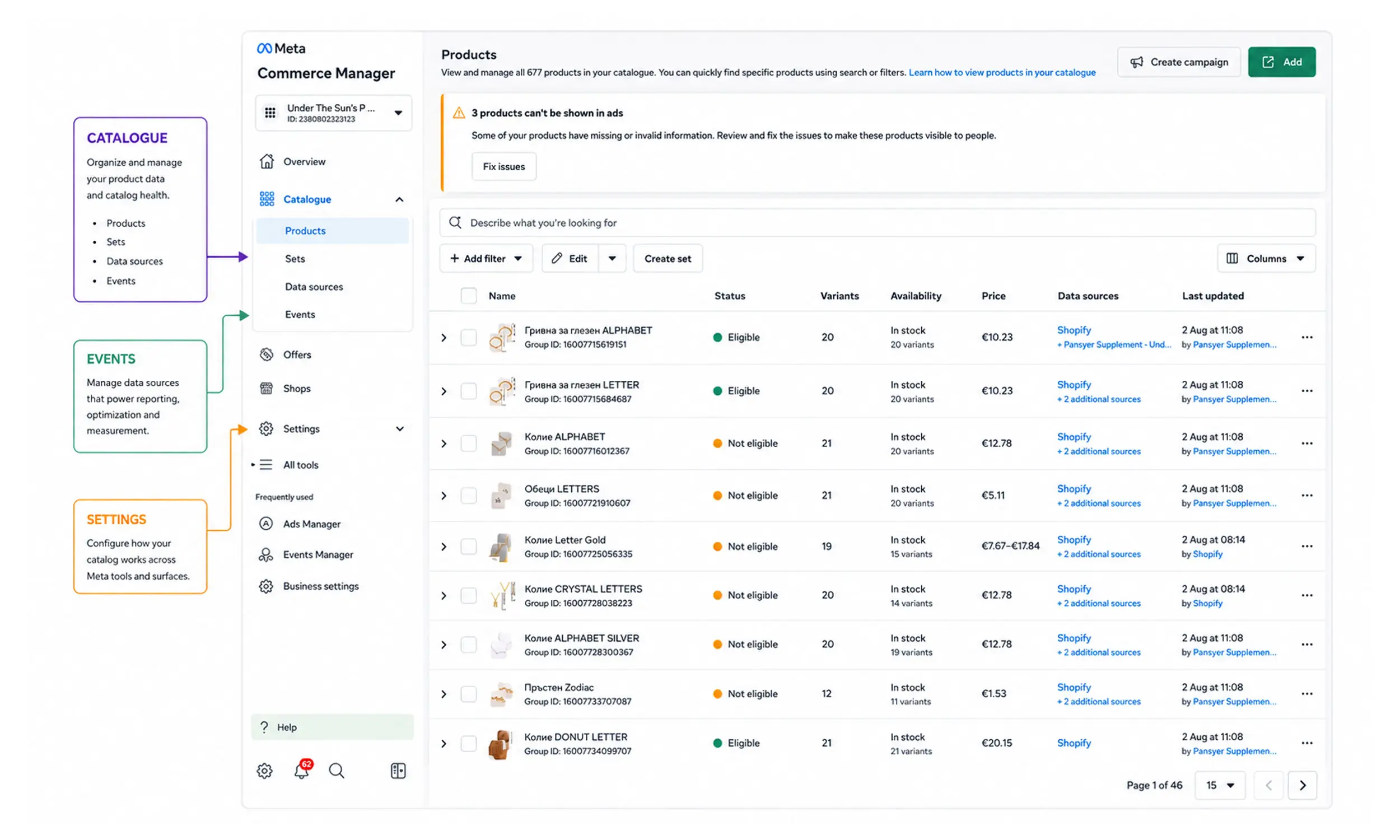
What Commerce Manager is
Commerce Manager (business.facebook.com/commerce) is Meta's hub for catalogs and commerce accounts. For advertisers, the object that matters is the catalog: the container holding your products, their data sources, their diagnostics, and their connections to pixels and ad accounts.
One catalog can serve every use at once - catalog ads, Shops, Instagram tagging - fed by one or more data sources. Most stores want exactly one catalog with one primary feed; multiple catalogs multiply maintenance and split learnings.
Creating the catalog
From Commerce Manager, create a catalog and pick its type - ecommerce for retail products (other verticals like vehicles have their own types). Then decide how products get in. Meta offers four routes:
Platform integration - Shopify and similar platforms sync products automatically through their channel apps
Data feed - a hosted file Meta fetches on schedule; the standard for any store wanting control
Manual add - Commerce Manager's item editor; fine for testing, unmanageable past a dozen products
Meta Pixel - Meta can build items from microdata on your site; convenient and low-quality, use only as a stopgap
For anything serious, the answer is the scheduled feed - reasons and setup in the feed spec guide.
Data sources: the feed's home
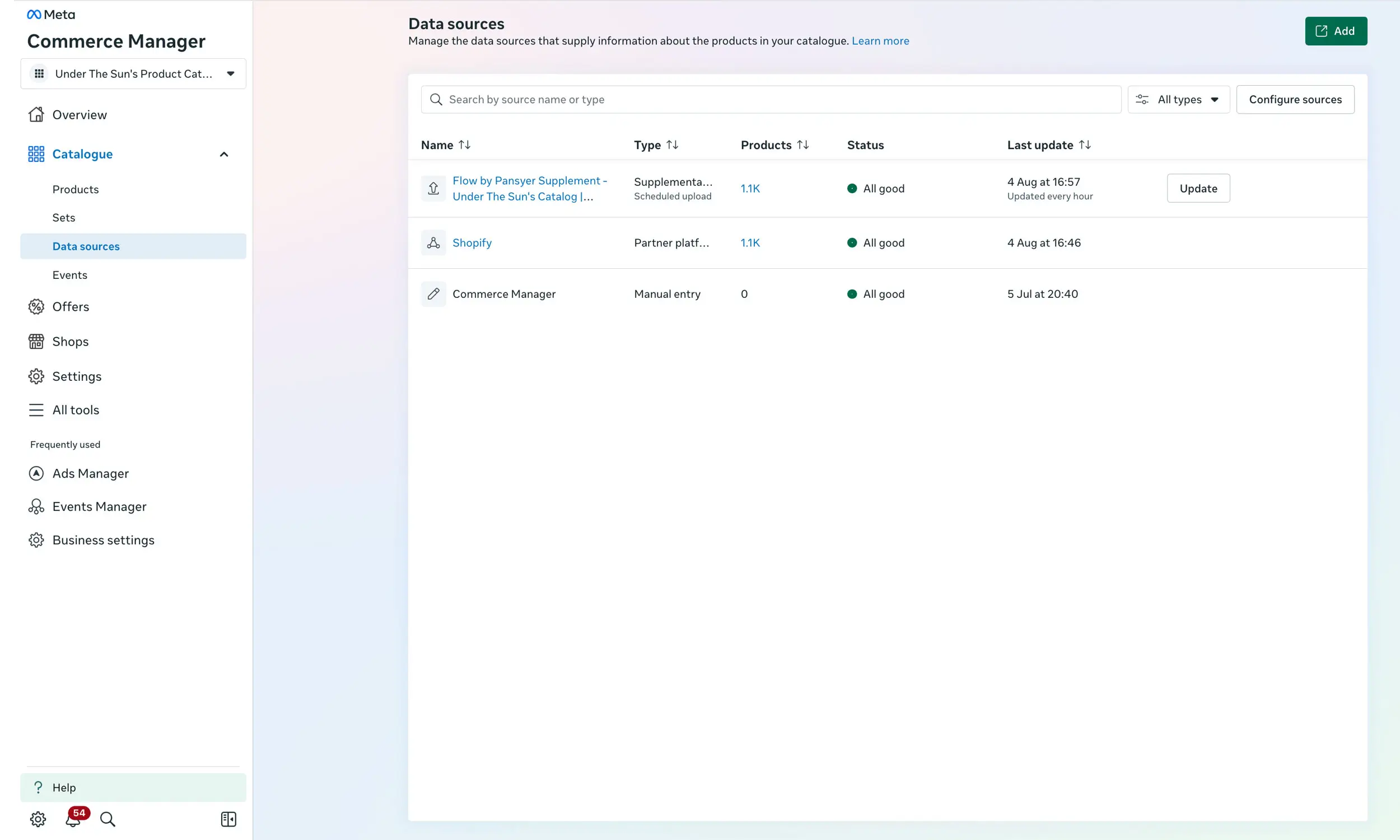
Catalog → Data sources is where feeds live and where problems surface first.
Adding a feed: point Meta at your hosted file URL (
https://,http://,ftp://, orsftp://) and set the fetch schedule - hourly, daily, or weekly. Daily is the floor for stores with changing prices.Watching it: each fetch produces a session report listing every error and warning, downloadable for spreadsheet triage. Meta caps a report at 100,000 errors - if you're near that, fix categories of problems, not rows.
The trap: schedules that fail repeatedly get paused and stay paused until a human resumes them in the feed's settings. A paused schedule looks exactly like a healthy catalog with slowly rotting data. Check it whenever prices seem stale.
Supplementary feeds: attached under the same data-sources view, they override chosen fields of the primary feed by product ID - the clean way to layer labels or better titles onto a platform-generated feed. They can't change price, availability, or quantity.
Items and issues
Catalog → Items shows every product with its status: active, rejected, or out of stock.
Rejected items carry the reason - data problems route to the error reference, policy rejections offer an appeal for manual review (legitimate products flagged by automated filters usually clear).
Out-of-stock items are excluded from ads automatically; in Shops they can display as "sold out" for up to 56 days before disappearing.
The Issues tab aggregates problems across the catalog - the weekly-review surface. A rising issue count between syncs means a pipeline regression, not bad luck.
Product sets: the targeting layer
Catalog → Sets is where the catalog becomes campaign-ready. A product set is a filtered slice - by category, price, availability, or label - and it's what ad sets actually promote.
Build the standard trio before your first campaign: bestsellers (prospecting), full catalog minus clearance (broad), and sale items (promotions). Filter on internal_label rather than custom_label for anything you'll change often - Meta recommends internal labels because custom-label edits re-trigger policy review on affected products.
Sets update themselves as products flow in and out of their filter conditions - which is the point: campaigns stay pointed at "current sale items" without anyone editing anything.
Settings that quietly matter
Three configuration details with outsized effect on how ads render:
Image cropping. Commerce Manager offers three options for how catalog images fit their frame: Fill frame (default - crops to fill), Show entire image (letterboxes), and Crop and resize to fit. If your product images have important edges (full outfits, tall bottles), the default crop can amputate them - check this before judging your creative.
Localization. Country and language feeds let one catalog serve localized prices and text. If you sell in multiple currencies, set this up rather than running parallel catalogs.
Pixel connection. Under Events, bind your pixel to the catalog. Retargeting requires it, and the join only works when pixel
content_idvalues match catalog IDs exactly - case-sensitively. Verify in Events Manager, not by assumption; the DPA guide covers the matching mechanics.
Connecting to ads
With catalog, sets, and pixel in place, the advertising side is short: in Ads Manager's sales objective, attach the catalog, choose the product set, and the campaign inherits everything Commerce Manager maintains - items, prices, images, availability. Catalog hygiene is campaign hygiene; there is no separate "fix it in the ad" layer.
That's also why the creative you feed the catalog matters: the images in your data source are what every campaign renders. Enriched, template-generated creative - prices, badges, brand frames - enters here, as separate rendered files with their own URLs, while your website photography stays untouched. The full approach is in enriched catalog ads.
A setup checklist
One catalog, ecommerce type, in the right Business portfolio
Primary data feed on a daily (or faster) schedule
First session report triaged to zero blocking errors
Pixel bound, content IDs spot-checked against catalog IDs
Product sets built on internal labels: bestsellers, evergreen, sale
Cropping setting reviewed against your actual product imagery
Weekly Issues review on the calendar; alerting on failed fetches
Keeping Commerce Manager focused on control
Flow belongs immediately upstream of the control room described here. Its catalog engine maps, validates, previews, and monitors product data before ingestion, reducing the number of avoidable issues that arrive in Commerce Manager.
The creative studio can prepare reusable ad assets from the same catalog, but it does not replace Meta's controls. Commerce Manager remains authoritative for ingestion status, item diagnostics, permissions, policy decisions, and the settings that affect delivery.
FAQ
What is Meta Commerce Manager?
Meta's hub for product catalogs: where feeds connect, items and rejections surface, product sets are built, and catalogs link to pixels and ad accounts for catalog ads and Shops.
Do I need a Shop to run catalog ads?
No. A catalog with a data source and a connected pixel is enough for Advantage+ catalog ads. Shops is a separate storefront use of the same catalog.
Why are my catalog changes not showing in ads?
Check the data source's last fetch and schedule status first - paused schedules are the usual cause. Then remember changed images need new URLs, or Meta keeps serving the cached version.
Should I use one catalog or several?
Start with one when the same business, ownership, and product identity model applies. Use separate catalogs when markets, permissions, legal entities, or source systems genuinely require isolation; product sets and localization handle many segmentation needs inside one catalog.
How do product sets differ from catalogs?
The catalog is the full product database; sets are saved filters over it that campaigns target. Sets update automatically as products match or stop matching their conditions.
Final thoughts
Commerce Manager rewards a one-time proper setup: the right data source on a schedule, a bound pixel with matching IDs, sets built on stable labels, and cropping settings that respect your imagery. After that, it's a dashboard with two habits attached - the weekly Issues glance, and the occasional check that nothing paused itself.
Get the control room right, and everything downstream - the ads, the creative, the scale - runs on rails.


Join The Newsletter
Stay ahead in catalog advertising
Get practical guides, product updates, new templates, and best practices for Dynamic Product Ads, creative automation, and ecommerce marketing.
On this page
Related articles



Launch catalog ads with ease
Ready to launch better catalog ads?
Turn product catalogs into publishing-ready creatives in minutes.