Somewhere in your Commerce Manager settings sits a three-option dropdown that quietly decides how every catalog ad you run frames its product. Most advertisers have never opened it. Many who have weren't sure what the options meant, picked nothing, and shipped the default.
Then the symptoms appear downstream: a full-length outfit cropped at the knees, a tall bottle missing its cap, a wide product floating in white bars - and the team debugs the creative, the template, the photographer, everything except the setting that actually did it.
This guide explains the three options in plain terms, which products each suits, and the workflow that makes the whole question mostly disappear.
Where the setting lives and why it exists
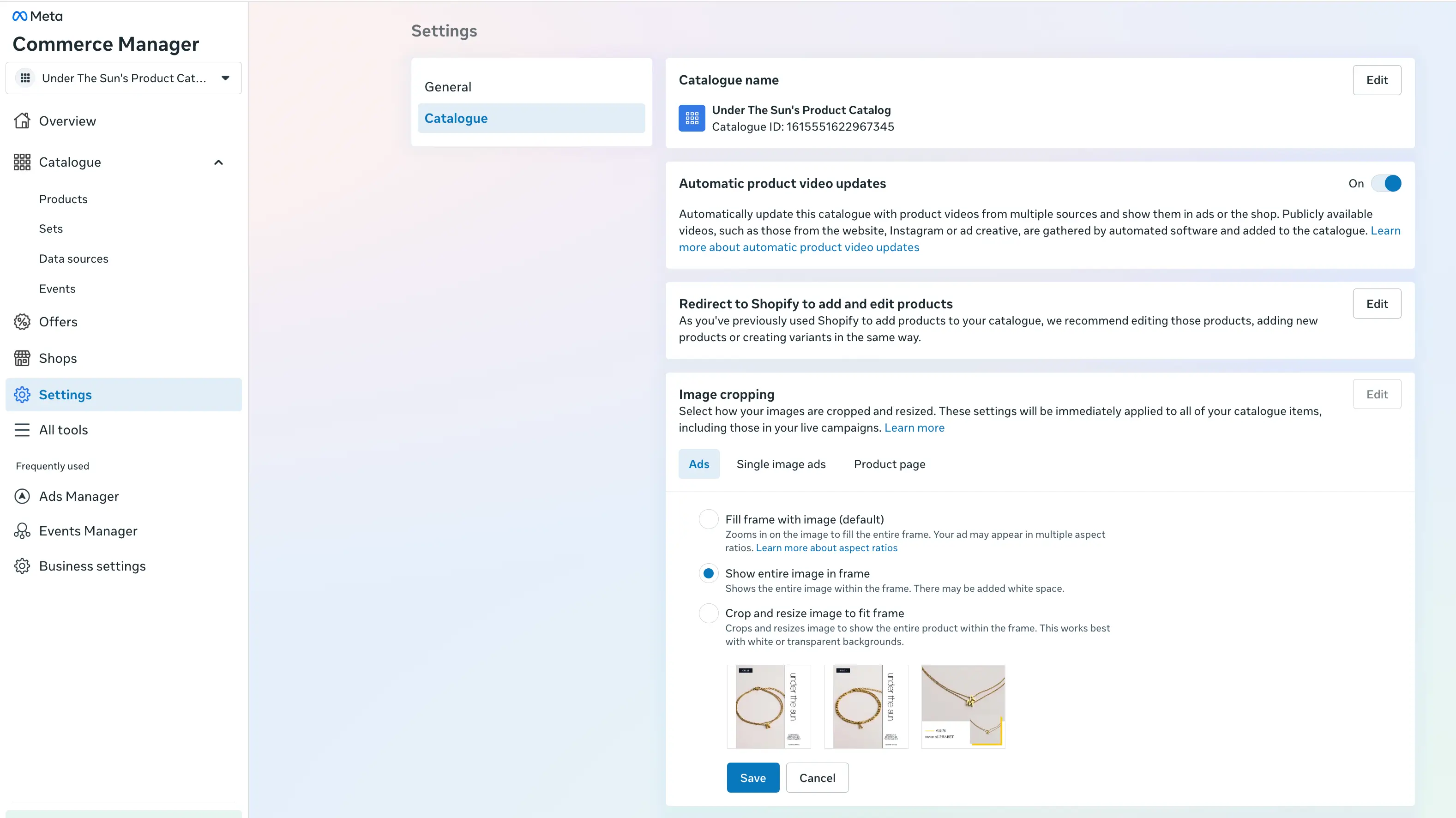
Catalog surfaces - feed ads, carousels, Shops - display images in fixed frames, mostly square. Your product photos arrive in whatever shape they were shot. Something has to reconcile the two, and that something is this setting, documented in Meta's product image specifications and configured at the catalog level in Commerce Manager.
Because it's catalog-level, one choice applies to every product - which is exactly why it deserves five deliberate minutes: the right answer depends on what your photography looks like, and one setting is doing the framing for your whole store.
The three options, in plain terms
Fill frame (the default)
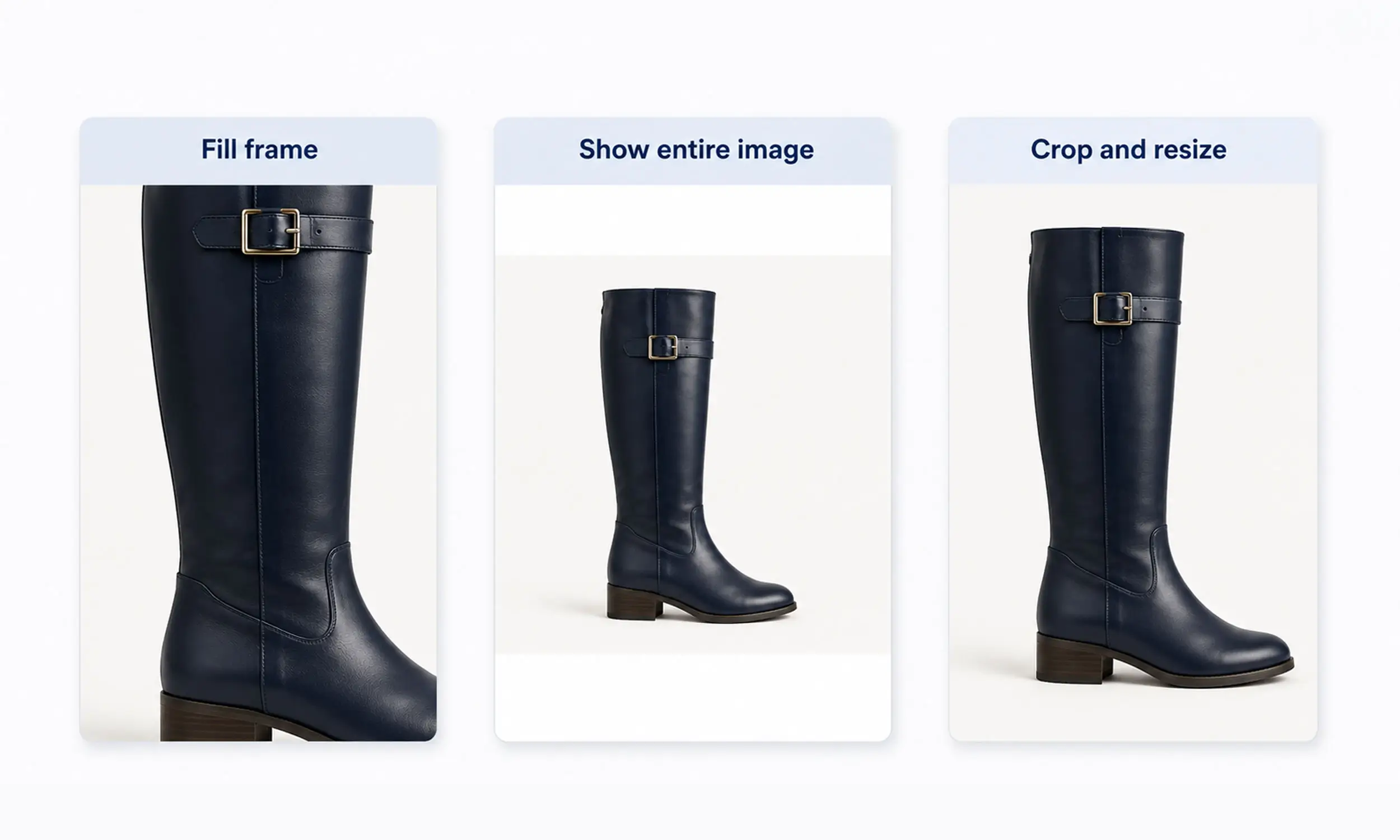
Meta scales the image up until it fills the display frame completely, cropping whatever overflows. The frame is always full - no white bars, no gaps - which is why it's the default: it looks clean at a glance.
The cost: anything near the edges can be cut. Products that fill their photos edge-to-edge - full-length apparel, tall bottles, wide furniture - lose their extremities. The crop follows the frame, not the product; it doesn't know where the shoes end.
Best for: photography with generous margins around the product, where cropping eats background instead of product.
Show entire image
The opposite trade: Meta scales the image down until all of it fits, filling leftover frame space with padding. Nothing is ever cut off - and the product renders smaller, with visible bars when the image shape doesn't match the frame.
Best for: catalogs where completeness is non-negotiable - technical products, sets, anything where a cropped edge misrepresents the item - and where you can accept a smaller product in the frame.
Crop and resize to fit
The middle path: Meta adjusts the image to the frame, balancing between filling and preserving. In practice it behaves as an adaptive compromise - less aggressive than Fill frame, less letterboxed than Show entire image.
Best for: mixed catalogs where product shapes vary and neither extreme fits everything - with the caveat that a compromise setting produces compromise results on the hardest images.
How to choose in practice
A short decision path:
Open your twenty best-selling products' images and note their shapes. Mostly square with margins → the default Fill frame is genuinely fine. Move on.
Tall or wide products shot edge-to-edge → Fill frame is amputating them right now. Switch to Crop and resize, or re-shoot/re-render the sources with margins.
Products where every part must be visible → Show entire image, and accept the padding as the price of accuracy.
Whatever you choose, preview the results across placements - the frame that matters is the one your buyers see, and carousels punish inconsistency: cards should share one aspect ratio or Meta may adjust the whole set.
And a rule that outranks the setting: the closer your source images are to the shape the frame wants, the less any option has to do. Which leads to the real answer.
The workflow that sidesteps the setting
All three options are damage control for a shape mismatch. The alternative is to remove the mismatch: supply images already composed for the frame - the product cut out, placed deliberately on a designed background, at the exact ratio the placement uses.
That's the template rendering approach: the product sits where the design puts it, with margins the design controls, in 1:1 for feeds and carousels and true vertical for Stories and Reels. Meta's cropping logic receives an image that already fits, so there's nothing left for it to cut.
The practical difference shows on exactly the products the setting struggles with - the tall boot, the wide sofa, the full-length dress - because a composed layout scales the product to fit the frame with intention, rather than letting a catalog-wide rule guess.
This is how images leave Flow's creative studio: product cutouts positioned inside templates at the ratios Meta serves, with backgrounds, prices, and margins under your control. The Commerce Manager setting stops being a fix for cropped products and becomes what it should be - a fallback for edge cases. Check it once, set it sensibly, and let the rendered creative make it irrelevant for the products that matter.
FAQ
What does Fill frame do in Meta Commerce Manager?
It scales your image up to fill the display frame completely and crops the overflow. Clean-looking, but products shot edge-to-edge can lose their tops, bottoms, or sides.
Why are my catalog ads cutting off my products?
Almost always the Fill frame default working on images without margins. Switch the catalog's image option or - better - supply images composed for the frame's shape.
Which image option is best for clothing?
Full-length apparel suffers most under Fill frame. Use Crop and resize or Show entire image, or render composed creative where the outfit is scaled to fit deliberately.
Does the setting apply to every product?
Yes - it's a catalog-level choice. That's why mixed-shape catalogs feel poorly served by any single option, and why composed, pre-fitted images are the durable fix.
Do I still need this setting if I use templates?
It stays as the fallback for anything not rendered through a template, so set it deliberately - but templated images arrive already fitting the frame, leaving the setting nothing to do.
Final thoughts
Meta's image options are three answers to a question your images ask: what should happen when the photo doesn't fit the frame? Pick the least-bad answer for your photography today - and then, when you're ready, change the question by shipping images that fit.
Five minutes in a settings panel now, one composed-creative pipeline later, and cropped products stop being a thing your team debugs.


Join The Newsletter
Stay ahead in catalog advertising
Get practical guides, product updates, new templates, and best practices for Dynamic Product Ads, creative automation, and ecommerce marketing.
On this page
Related articles



Launch catalog ads with ease
Ready to launch better catalog ads?
Turn product catalogs into publishing-ready creatives in minutes.